
Create groups for a class, workshop, or game
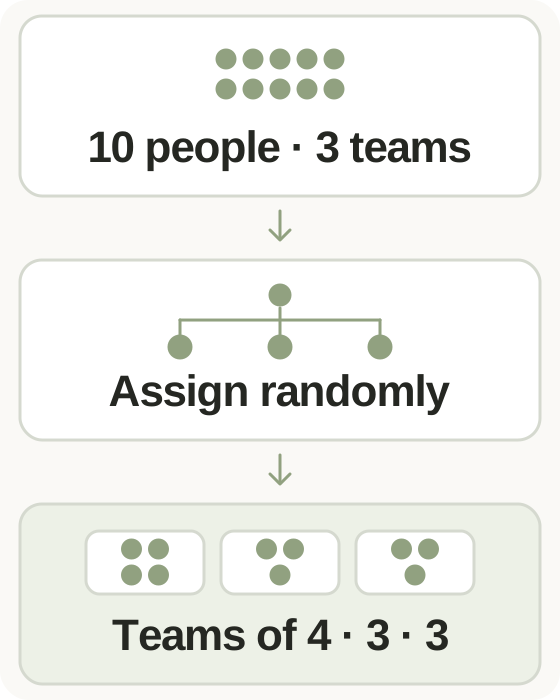
Enter each participant on a new line or separate names with commas. If you only need numbered participants, choose the participant count instead. Set the number of teams and generate the allocation. Everyone appears once, and team sizes differ by no more than one person. When ten people join three teams, the sizes are four, three, and three. The shuffle does not use playing ability, department, friendships, or other personal attributes. Review any requirements your event has before using the result. Give people with the same name distinct labels so you can identify every person in the copied team list.
Step-by-step instructions and example screen
From input to result
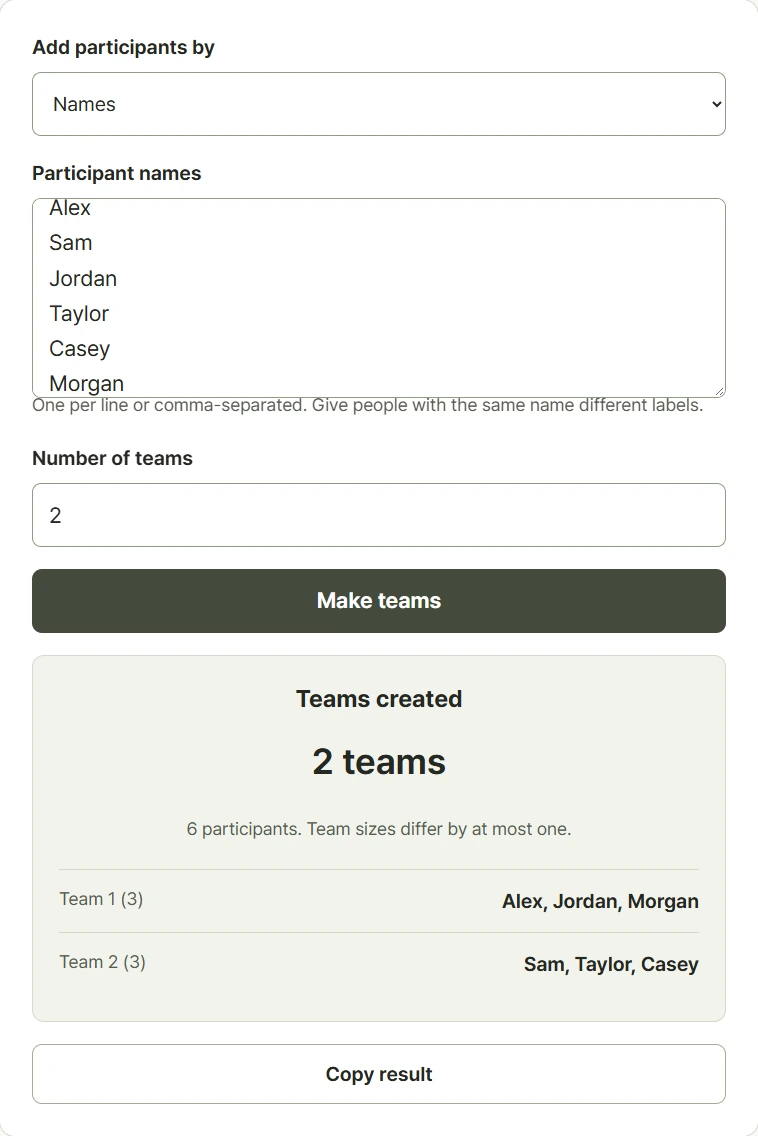
- Enter names separated by lines or commas, or choose a participant count.
- Set the number of teams and check that everyone has a distinct label.
- Generate the teams, review the allocation, and copy the group list.
When to use this tool
Form classroom groups
Split twelve students into three groups of four. Use numbered participants if you already have an attendance list with matching numbers.
Organize a club game
Divide ten players into three groups, then review any sporting requirements that need more than similar headcounts.
Assign workshop tables
Paste attendee names, choose the table count, and copy the allocation into your event notes or instructions.
Examples and calculation method
Worked examples
| Participants | Teams | Group sizes |
|---|---|---|
| 6 people | 2 | 3 and 3 |
| 10 people | 3 | 4, 3, and 3 |
| 30 people | 5 | 6 in each team |
Shuffling and distributing the remainder
The tool shuffles the participant list using browser Web Crypto random values, then deals participants to the teams in turn. If the total is not divisible by the team count, the first teams receive one extra participant each. Names must be distinct. You can enter 2 to 500 participants and create 2 to 50 teams, provided the number of teams does not exceed the number of participants.
Understanding your result
- Use a separate label for each person; identical names must be distinguished before generating.
- Numbered mode creates consecutive numbers starting at 1, so use names mode for a list with missing numbers.
- Group sizes are balanced by count; check any event rules before finalizing the allocation.
Frequently asked questions
Frequently asked questions
Does it balance skill levels?
It balances headcounts only. Skill, gender, roles, and other attributes are not evaluated, so review those requirements separately.
What happens when people do not divide evenly?
The earlier teams receive one extra person each. Ten people split into three teams produce group sizes of four, three, and three.
Can two participants have the same name?
Use distinct labels such as Alex A and Alex B. Identical labels are rejected so each participant can be identified in the result.
Does generating again exclude earlier teammates?
No. Every run shuffles the full list again. Some people may end up together in consecutive allocations.